
How to Split a PDF: Extract Pages in Seconds
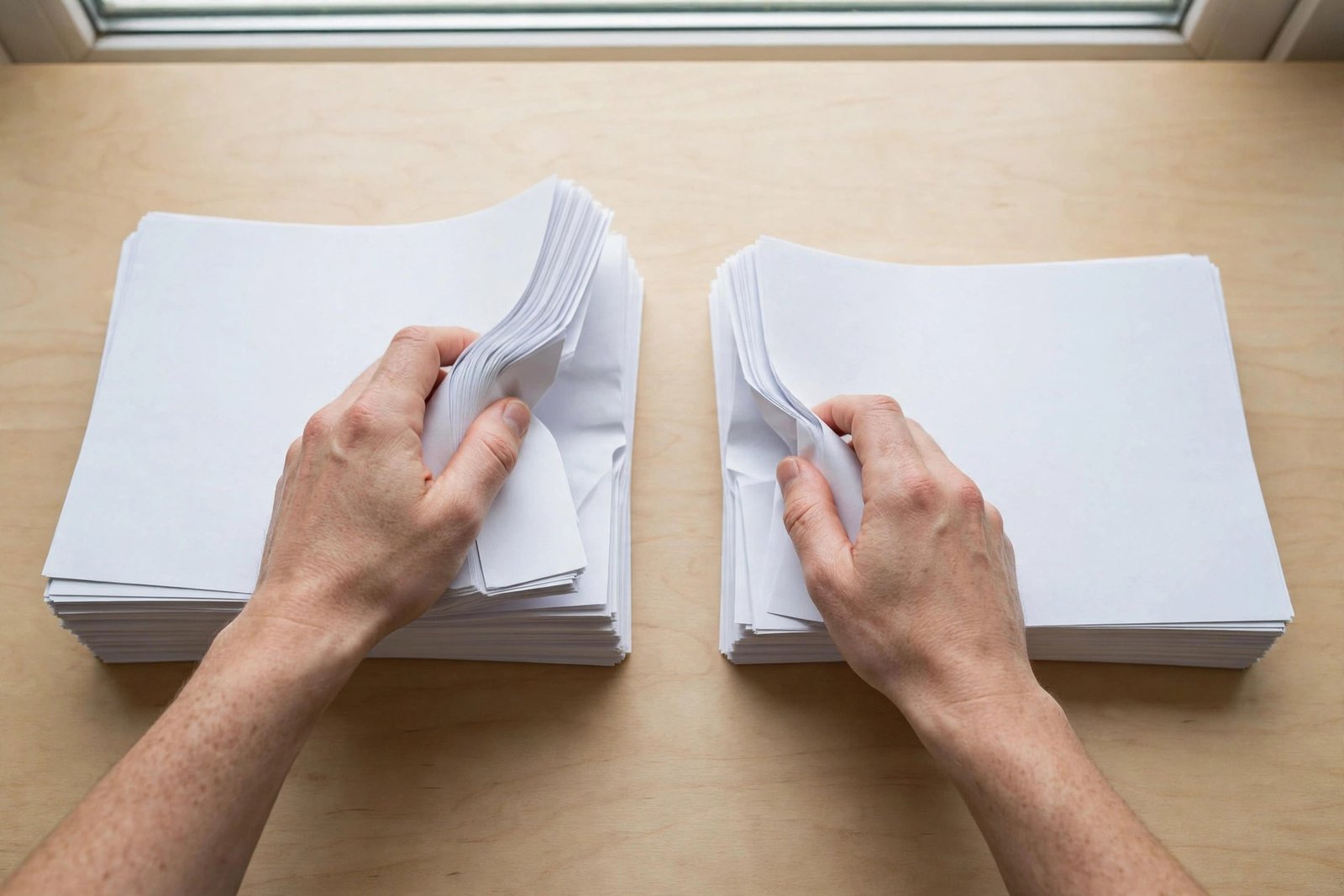
Every big PDF eventually becomes a problem of too much. A 60-page bank statement where the visa officer only wants page 4. A scanned contract with your old address on page 2 that you need to send without it. A textbook chapter buried inside a 400-page file your study group wants. Splitting a PDF — pulling out exactly the pages you need — is one of those tasks that takes ten seconds once you know how, and an hour of frustrated screenshotting if you don't.
Here are three methods that actually work, starting with the fastest.
Method 1: Free browser tool (fastest)
If you just need pages out of a PDF, don't install anything.
- Open PDFPax Split PDF.
- Drop in your PDF. Everything runs in your browser, so bank statements and contracts never get uploaded anywhere.
- Pick the pages you want — a single range like 4–9, or individual pages like 2, 5, 11.
- Download the new, smaller PDF.
This is ideal for the classic jobs: extracting one invoice from a monthly bundle, pulling your certificate out of a scanned batch, or chopping a long document into chapter-sized pieces. If the extracted file still needs to be small enough for an upload form, run it through Compress PDF afterward — splitting first and compressing second gives the cleanest result. For more on shrinking files, see our guide to compressing a PDF without losing quality.
Method 2: macOS Preview (already on your Mac)
Mac users can split without any extra software, using a trick that feels backwards the first time:
- Open the PDF in Preview and choose View > Thumbnails.
- Select the thumbnails of the pages you want (hold ⌘ to pick non-consecutive pages).
- Drag those thumbnails onto your desktop — Preview creates a new PDF containing just those pages. Alternatively, choose File > Print, set the page range under Pages, and click PDF > Save as PDF.
The drag-to-desktop trick is genuinely fast, but the print-to-PDF route has a catch: it can slightly change rendering on complex pages, since you're re-printing rather than copying. For important documents, prefer the thumbnail drag.
Method 3: Adobe Acrobat (paid, but thorough)
If you already have Acrobat (not the free Reader), go to Tools > Organize Pages, select pages, and choose Extract. You can extract as separate files in one go, which is handy when you're splitting a 200-page report into twenty sections. It also preserves bookmarks and links better than most free tools. But like the merge feature, it's not worth a subscription on its own — the free methods above cover 95% of splitting jobs.
Split smart: a few habits worth building
- Never overwrite the original. Save the split as a new file (
statement-march-only.pdf), and keep the source intact. You will eventually need a page you left out. - Name files for humans.
split-3.pdfmeans nothing in six months.contract-signed-pages.pdfdoes. - Check what survived. After splitting, skim the new file. Page numbers, footers, and internal links can behave oddly when pages are extracted — a two-minute check beats an embarrassing submission.
- Combine with rotate. Scanned pages often come out sideways. If a split page is upside down, fix it with Rotate PDF before sending it anywhere.
Going the other direction? Read our guide to merging PDF files — split and merge together cover almost every "reorganize this document" job you'll ever face.
FAQ
Does splitting a PDF reduce its quality?
No. Splitting copies pages as-is; nothing is re-rendered, so text and images stay exactly as sharp as the original. (The Preview print-to-PDF trick is the one exception — that re-renders.)
Can I extract pages that aren't next to each other?
Yes — most tools, including PDFPax Split PDF and Preview's thumbnail selection, let you pick individual pages like 2, 5, and 11 into a single new file.
Is it safe to split bank statements or ID documents online?
With PDFPax, yes: processing happens entirely in your browser, so the file never leaves your device. With random free sites, be cautious — many upload your file to their servers. When in doubt, check the site's privacy policy or stick to desktop tools.
Ready? Split your PDF now — free, no sign-up, and your files never leave your device.