
New PDF Tools 2026: Best Online PDF Tools
New PDF Tools 2026: Best Online PDF Tools
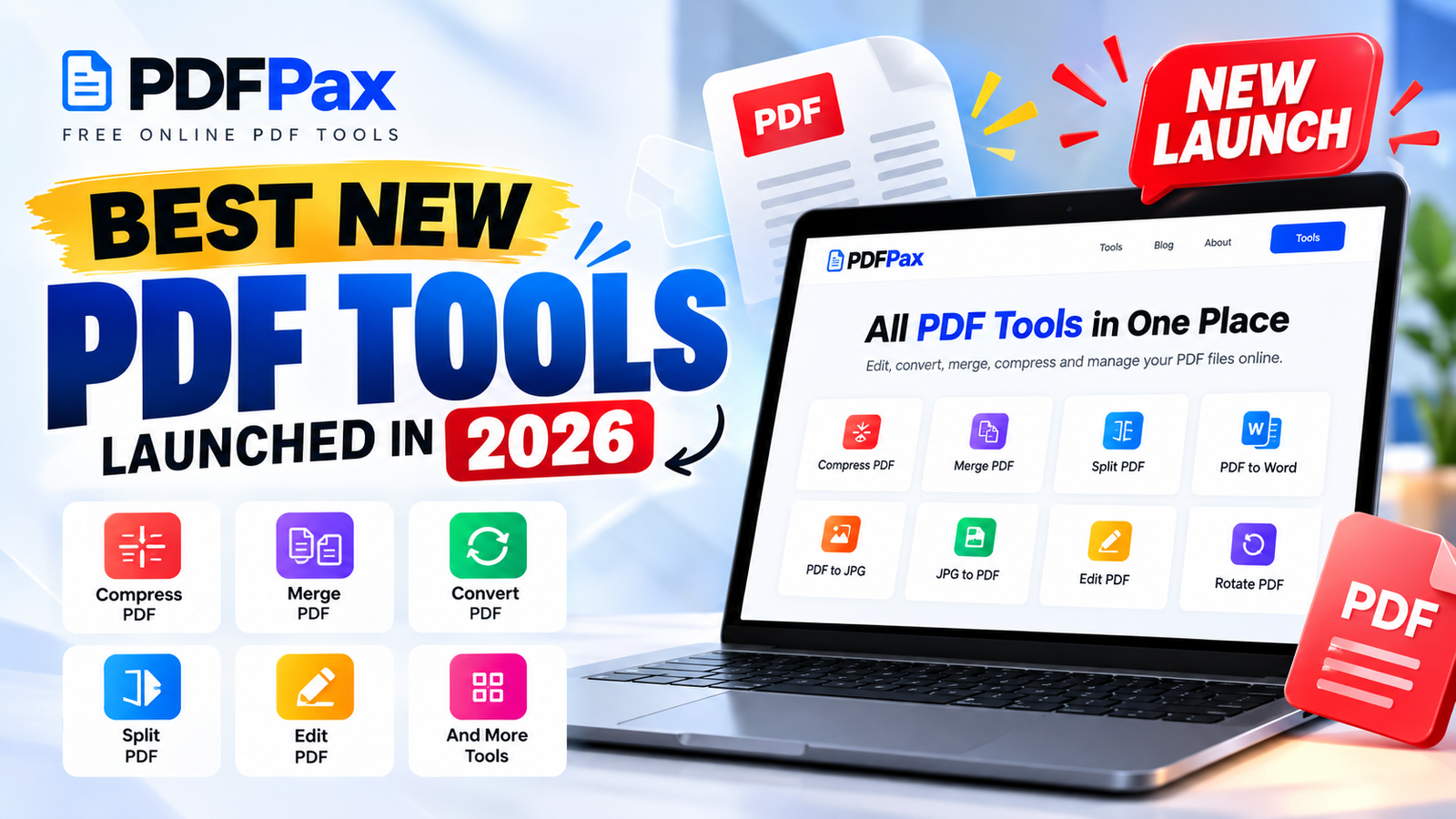
New PDF tools 2026 are making everyday document tasks easier, from compressing large files to merging, splitting, converting, and editing PDFs directly in your browser.
PDF files are everywhere. Students use them for assignments and notes, businesses use them for invoices and reports, and professionals use them for contracts, applications, presentations, and other documents.
The problem starts when you need to do something simple with a PDF.
Maybe the file is too large to upload. Maybe you need to combine five PDFs into one. Perhaps you only need three pages from a 50-page document, or you need to convert a PDF into another format.
You don't always need expensive desktop software for these tasks. Online PDF tools can handle many common jobs directly from your browser.
In this guide, we'll look at the most useful PDF tools and when each type of tool is actually useful.
1. Compress PDF Files
Large PDF files can become a problem when you're trying to upload them to a website, attach them to an email, or send them through a messaging app.
PDF compression reduces the file size while trying to maintain acceptable document quality.
For example, imagine you have a scanned 20 MB document but the website you're uploading it to only accepts files under 10 MB. Compressing the PDF may solve the problem without requiring you to recreate the document.
Best for:
- Email attachments
- Online applications
- School assignments
- Scanned documents
- Business reports
- Faster file sharing
You can use the PDFPax PDF tools to find a suitable PDF solution for your file.
2. Merge Multiple PDFs
Working with multiple PDF files can quickly become messy.
Suppose you have a cover page, five pages of a report, supporting documents, and an appendix stored as separate files. Sending all of them individually isn't always convenient.
A PDF merger allows you to combine multiple files into one document.
This is particularly useful for students preparing assignments and businesses preparing reports or document packages.
Example:
Instead of sending:
- Report.pdf
- Appendix.pdf
- References.pdf
- Cover.pdf
You can combine them into a single organized PDF.
3. Split a PDF
Sometimes you have the opposite problem.
You don't want the entire document. You only need a few pages.
A PDF splitter can extract selected pages from a larger document and create a new PDF.
For example, a 100-page report might contain a five-page section you need to send to someone. Rather than sharing the entire file, you can extract those pages.
PDF splitting is useful for:
- Extracting specific chapters
- Sharing selected pages
- Separating documents
- Creating smaller files
- Organizing scanned paperwork
4. Convert PDF Files
PDF is excellent for sharing documents, but it isn't always the easiest format to edit.
That's why PDF conversion tools remain useful.
Depending on the task, you may need to convert a PDF into another document or image format, or convert another file into PDF for easier sharing.
Conversion is particularly helpful when you're moving information between different applications.
Before converting an important document, always check the resulting file. Complex layouts, tables, fonts, and images don't always transfer perfectly between formats.
5. Edit PDF Documents
PDFs are usually designed for consistent viewing rather than easy editing.
However, there are times when you only need to make a small change.
An online PDF editor can be useful for tasks such as adding text, making annotations, highlighting information, or making other basic changes.
This can save time when you don't have dedicated PDF software installed on your computer.
For larger editing jobs, however, it may be better to edit the original source document and export it as a PDF again.
6. Rotate PDF Pages
A surprisingly common PDF problem is incorrect page orientation.
You may receive a scanned document where some pages are sideways or upside down. Reading the file like this is frustrating, especially on a phone.
A PDF rotation tool can fix the orientation without requiring you to recreate the document.
It's a small feature, but useful when dealing with scanned documents, receipts, forms, and images converted into PDFs.
7. PDF Tools for Students
Students deal with PDFs constantly.
Assignments, research papers, lecture notes, past papers, applications, and ebooks can all end up as PDF files.
A simple online PDF toolkit can help with everyday tasks such as:
- Combining assignment files
- Compressing files before submission
- Extracting pages from notes
- Converting documents
- Organizing research material
The main advantage is convenience. You can complete many basic tasks directly from a browser instead of installing separate applications for every job.
8. PDF Tools for Businesses
Businesses have even more reasons to work with PDFs.
Invoices, quotations, reports, forms, proposals, receipts, and contracts are commonly exchanged as PDF documents.
For a small business, using browser-based PDF tools can be a practical way to handle routine document tasks without adding unnecessary software to every computer.
For example, a sales employee may need to combine a quotation and product information into one PDF before sending it to a customer.
An accounts employee might need to compress a large invoice document before uploading it to an online system.
These are simple tasks, but having the right tool available can save time.
How to Choose the Right PDF Tool
You don't need the biggest PDF toolkit. You need the right tool for the job.
Before choosing an online PDF service, consider these factors:
Ease of Use
The tool should be straightforward. If a simple PDF conversion requires ten confusing steps, it's probably not the right tool for everyday use.
File Quality
Check the output after compression or conversion. A smaller file isn't useful if the text becomes unreadable or important formatting disappears.
Privacy
Be careful when uploading sensitive documents.
Documents containing personal information, financial information, passwords, confidential business data, or other private information should only be uploaded to services you trust and whose file-handling policies you understand.
Device Compatibility
A useful online PDF tool should work well on modern browsers across computers and mobile devices.
Speed
For everyday tasks, processing speed matters. You don't want to spend several minutes waiting for a simple document operation.
Are Online PDF Tools Better Than Desktop Software?
Not necessarily.
Both have their place.
Online PDF tools are convenient when you need to complete a quick task without installing software. They're particularly useful when you're using another computer or working from a mobile device.
Desktop applications can be better when you regularly work with PDFs, need advanced editing features, or work with sensitive files that shouldn't be uploaded to an online service.
The best option depends on your workflow.
Final Thoughts
The best PDF tool is usually the one that solves your specific problem without making the process complicated.
If you need to reduce a file size, use a PDF compressor. If you have several documents, merge them. If you only need certain pages, split the PDF. For document changes, an editor may be more appropriate.
For occasional PDF work, online tools can be a convenient alternative to installing dedicated software.
If you're looking for a collection of simple browser-based PDF utilities, explore the PDFPax tools and choose the option that matches the task you need to complete.
Frequently Asked Questions
What are the new PDF tools in 2026?
New PDF tools in 2026 focus on making common document tasks easier, including compression, merging, splitting, conversion, editing, and other browser-based PDF workflows.
Can I use PDF tools without installing software?
Yes. Many PDF utilities work directly in a web browser, so you can use them without installing a desktop application.
Can I compress a PDF before uploading it?
Yes. Compressing a PDF can reduce its file size and make it easier to upload, email, or share.
Is it safe to upload PDFs online?
It depends on the service and the document. Avoid uploading highly sensitive documents unless you trust the provider and understand how uploaded files are handled.
Which PDF tool should I use?
Start with the task. If the file is too large, use compression. If you have several PDFs, merge them. If you only need specific pages, split the document. For changes to the content, use an editing tool.
Try it now: open the free PDFPax tools — no sign-up, no watermark, and your files never leave your device.